






3 User-friendly video editing tools in under 10 minutes

🧠 Quick summary | 🕓 Updated on 06/03/2026
🎯 The goal of this article: Create a smooth, professional video edit user-friendly video editing
✅ What you’ll learn: Organize your files, cut a clip, add text and subtitles, insert a transition, add music, then export in 1080p for YouTube and social media.
✅ Bonus: the “10-minute timer” method, mini-workflows that can be used multiple times, and quality tips (color, audio, background) for a clean result.
📌 Target audience: Communication teams, creators, beginners, managers. On Windows, Mac, iOS, or Android.
Editing a video shouldn't feel like running a marathon.
Today, there are user-friendly video editing that can turn any beginner into a creator in just a few clicks. In ten minutes, a simple idea can become a complete video: a format adapted to your social networks, a clear image, clear text, a touch of music or voice-over, and a professional enough finish to capture attention on YouTube, Instagram, or TikTok.
In France, more than 40 million users visit YouTube every month. Which means your future audience is already there. And since everyone spends more than an hour a day on social media, there's no need to remind you how important it is to have short, easy-to-share content.
ivent if your on Windows, Mac, iOS, or Android, the right user-friendly video editing saves you time and improves quality. No need to become an expert in special effects or sound editing: a simple interface, a few suitable templates, and you're good to go.
The goal? To make video creation as quick as posting on Instagram, with a professional enough finish to make people want to watch until the end.
Why simplicity changes everything in video editing
Good user-friendly video editing shouldn’t feel like reading a 200-page manual. The easier it is to use, the more time you save, and the more impactful your videos become.
With a video editor, everything becomes fluid: you import your files, cut a clip, add text, add a transition, add some music, and then export the video. In under 10 minutes, you have content ready for YouTube, Instagram, or TikTok.
Simplicity also ensures quality without getting lost in complicated menus. Good user-friendly video editing already offer suitable formats: vertical for mobile, square for social media, 16:9 for your YouTube channel.
What wastes time (and credibility):
- Too many special effects that drown out the message
- Badly mixed audio or a crackling voice-over
- Hard-to-read or badly placed subtitles
- Wrong export settings that ruin the video quality
With an user-friendly video editing, you can avoid these pitfalls. And above all, you can create videos faster that people will want to watch... and share.
The “10-minute timer” method
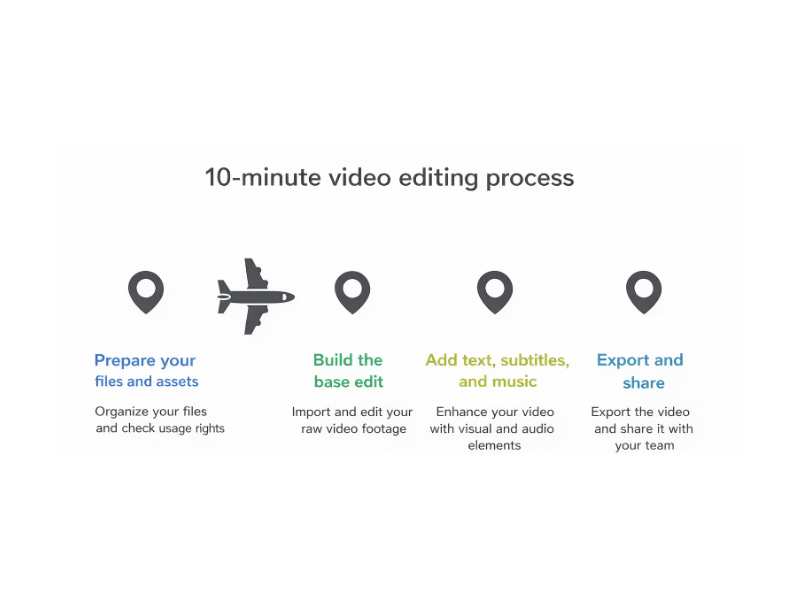
Prepare your files and equipment (2 min)
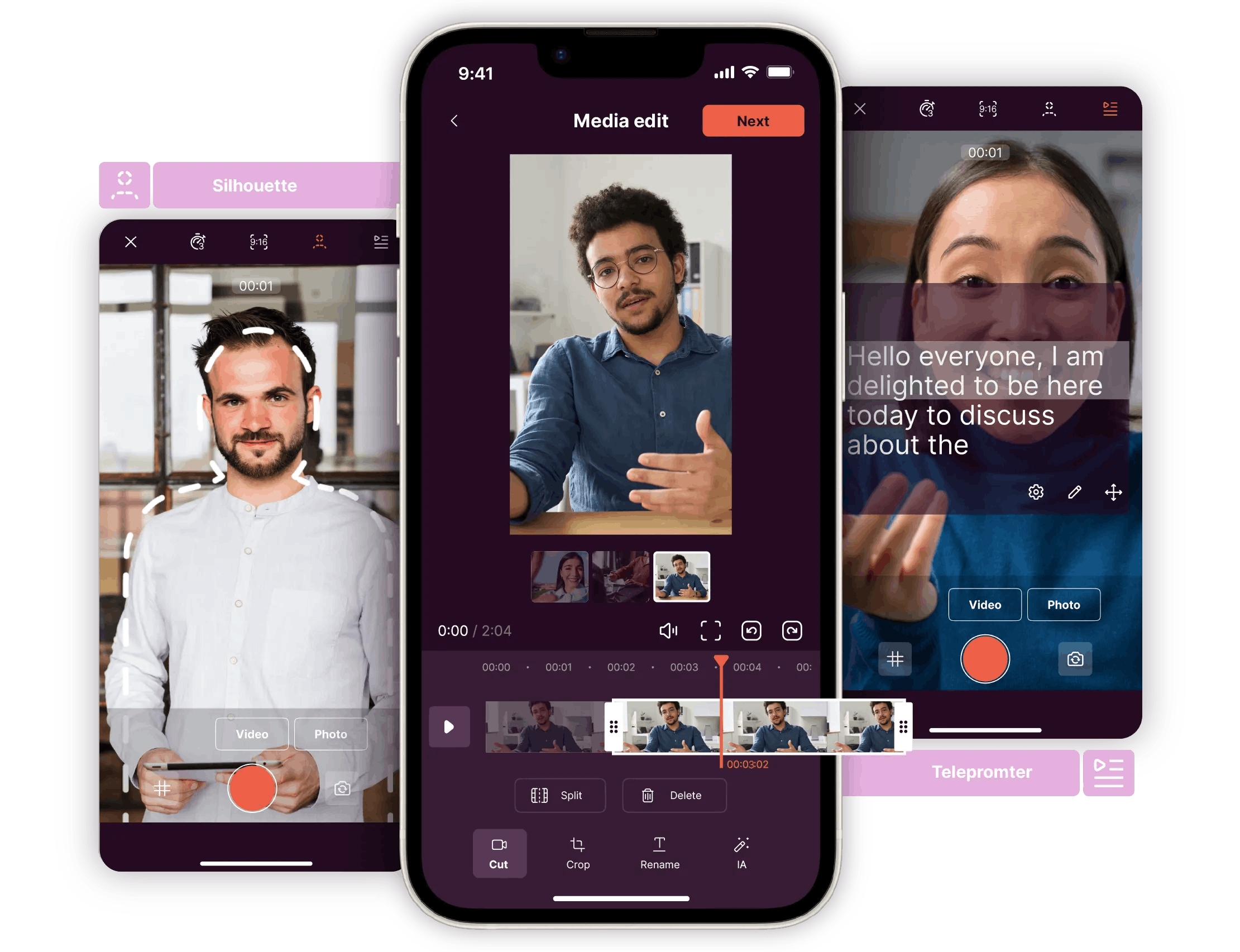
Fast editing starts with a minimum of organization. Well-organized folders for your files, images, audio clips, and logo will save you valuable time. It’s also a good idea to check resolution and usage rights before starting the project. The format should be decided upfront: vertical for TikTok, square for Instagram, and 16:9 for YouTube.
To learn more about the preparation phase, Pitchy details the key points in its guide “The 7 key steps to prepare for video filming.”
Cut your content and lay the foundation (3 min)
Fluid editing relies on a few simple steps. The chosen user-friendly video editing allows you to import rushes, edit quickly, and keep only the useful passages. A discreet transition is enough to maintain the rhythm. Too many special effects weigh it down unnecessarily.
For an overview of the basics, Pitchy gives you 5 steps for quick detiting!
Add text, subtitles, and music (3 min)
A video becomes more impactful when it’s properly styled. Clear titles, readable subtitles, and a clean voice-over add real value. Royalty-free music can enhance the mood. A color filter or a simple background helps strengthen visual consistency. The brand logo fits in naturally discreet but visible.
For learning content, Pitchy has published a complete guide on How to make a successful tutorial video.
Export and share immediately (2 min)
The final result depends on your export settings. An MP4 in 1080p ensures good quality without creating files that are too large. Presets for YouTube and social platforms help avoid unpleasant surprises. All that’s left is to upload the file to Google Drive, share the link with your team, and test playback on a smartphone before publishing.
The 3 essential user-friendly video editing tools
Pitchy: the perfect user-friendly video editing tools for busy professionals
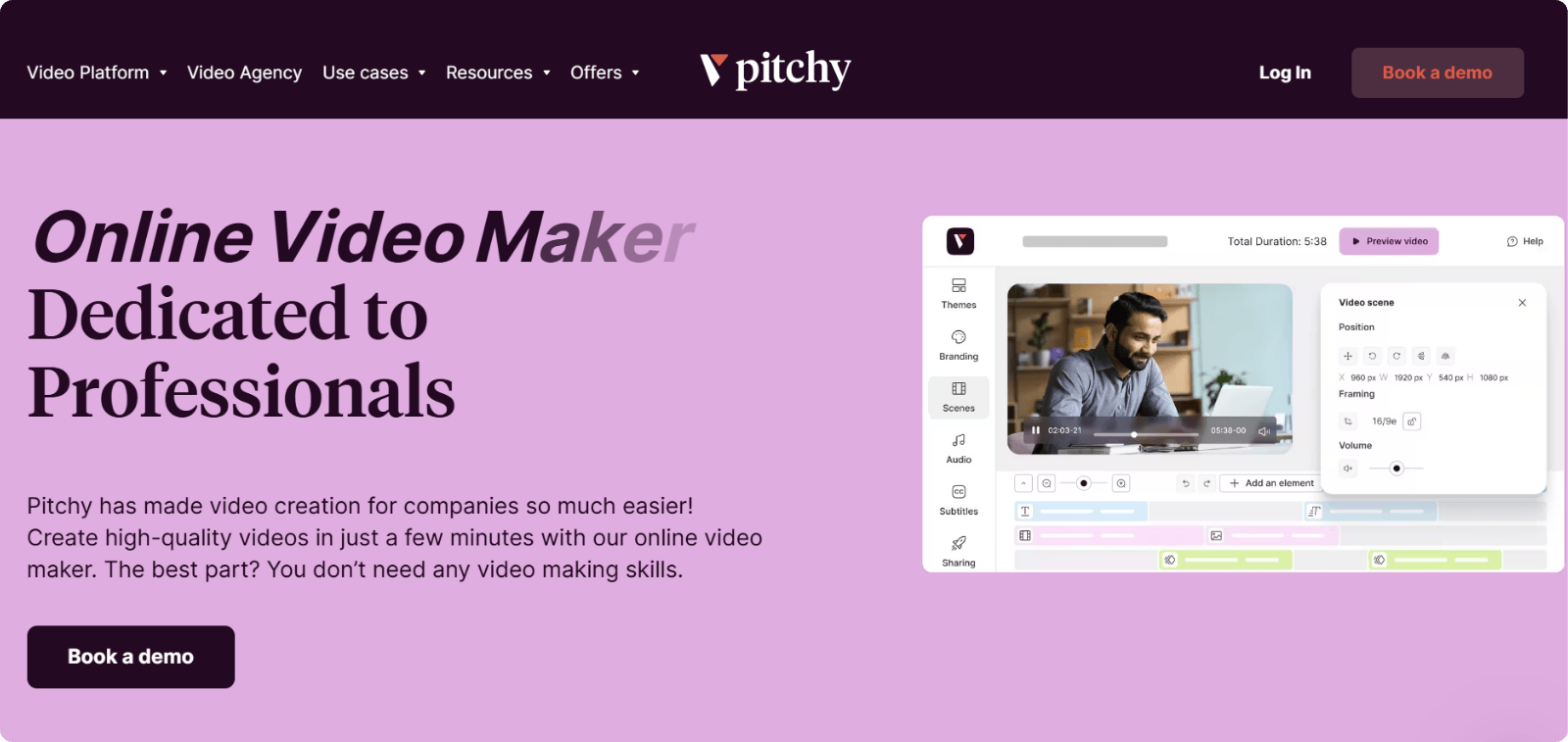
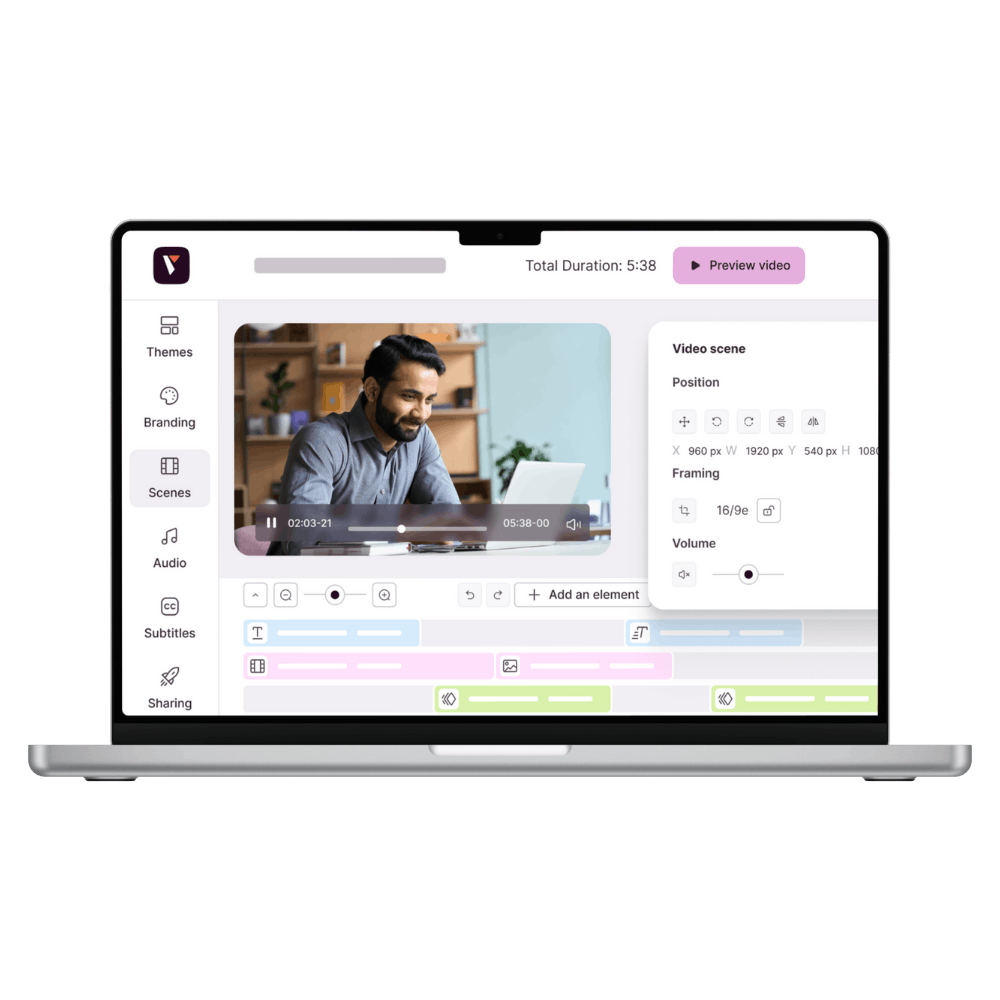
Pitchy is in a different league from basic apps. The user-friendly video editing tool is designed for teams that need to produce content quickly while maintaining brand consistency. Everything happens online: you open a template, drag and drop your media (video, photo, logo), and the graphic charter is applied automatically. Say goodbye to inconsistent fonts and colors across your videos.
Where Pitchy really adds value is in collaboration. Many people can work on the same project without wasting time sending files back and forth. The commenting system makes feedback smoother, which is uncommon in user-friendly video editing tools.
In practice, an express edit with Pitchy looks like:
- Choose a template adapted to your use (interview, internal announcement, teaser)
- Import clips and quickly edit them with the online video editor
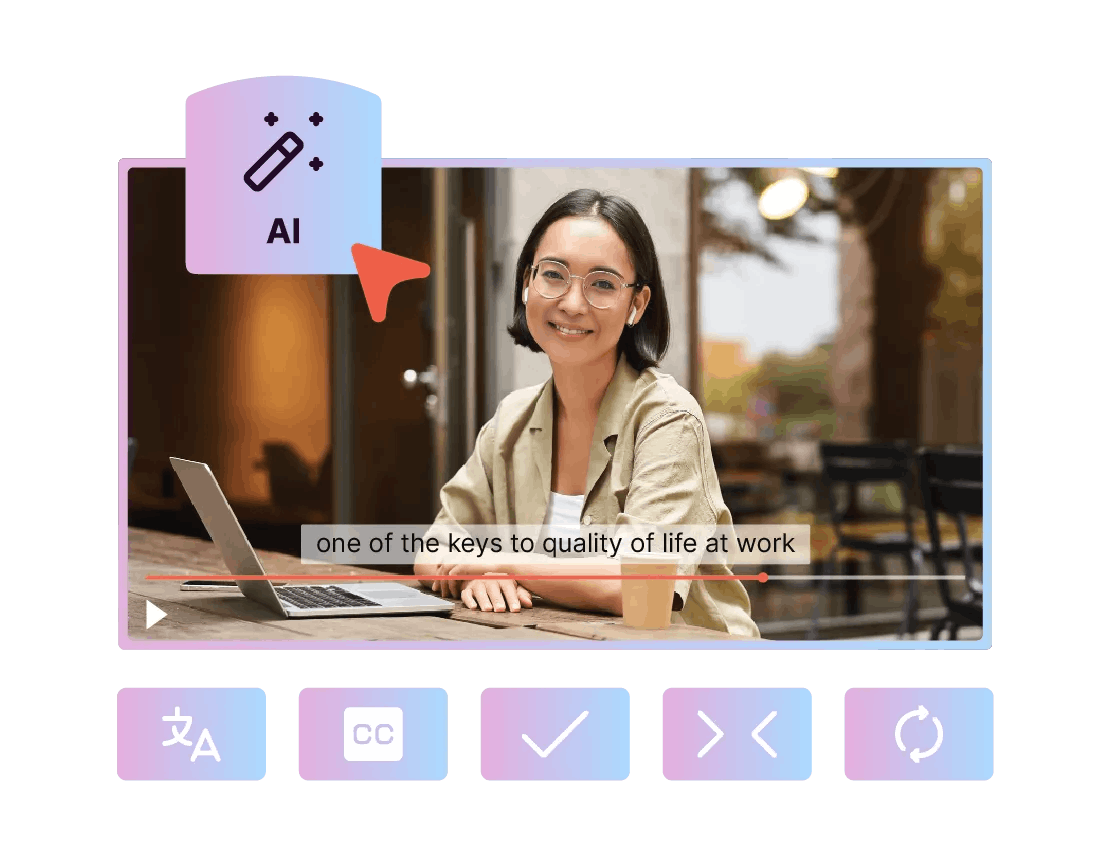
- Add text, automatic subtitles, and visual elements
- Select music from the integrated library
- Export in one click, ready for YouTube, LinkedIn, or TikTok
The result: a high-quality, professional video that's ready to share, without having to go through an agency.
The user-friendly video editing tool is mainly designed for companies and teams that want to maintain brand consistency. An individual creator who just wants to try a free tool may find the offer a bit too advanced for their needs but that’s exactly what makes it so powerful for professional use.
Clipchamp: a practical companion for Windows
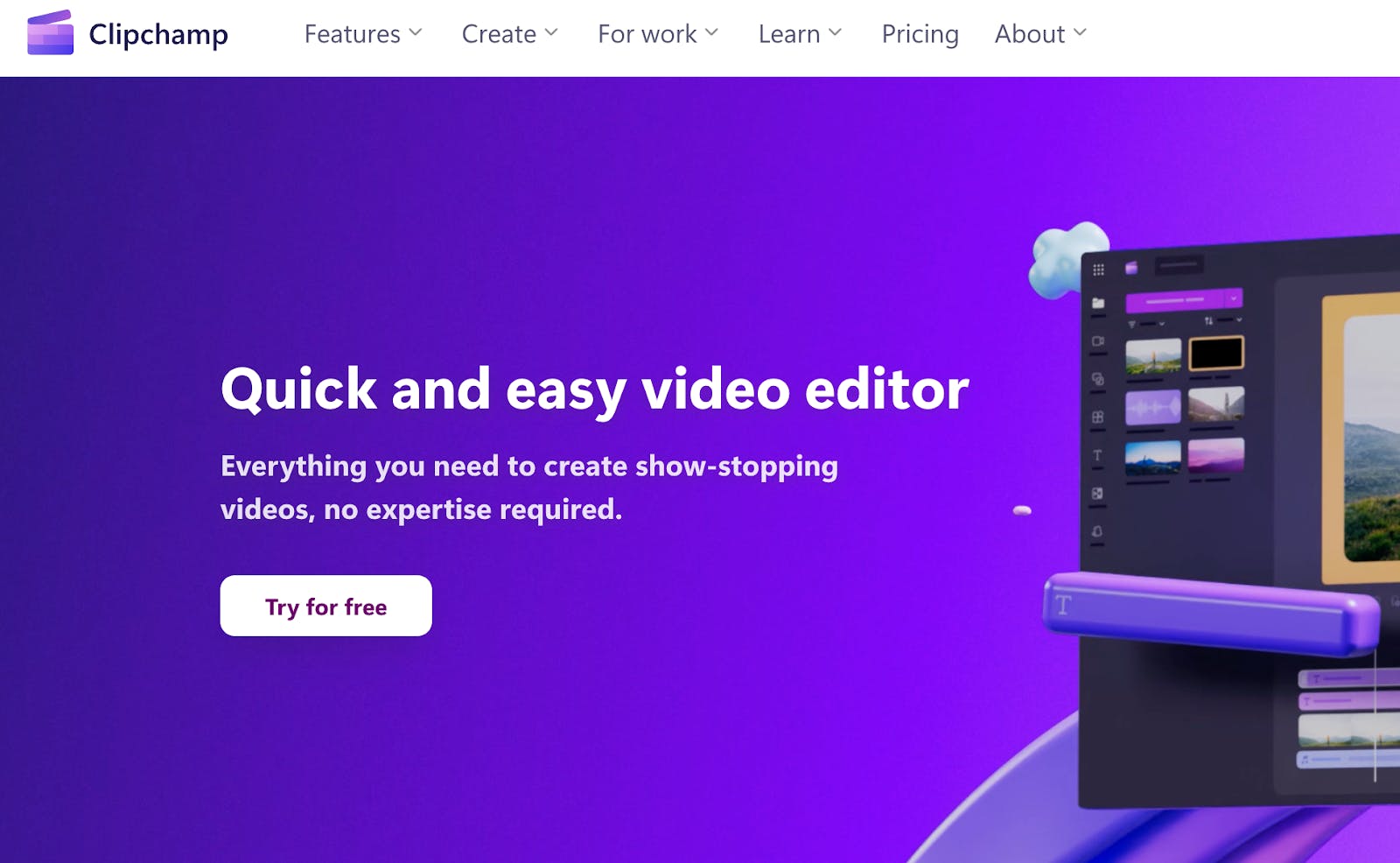
Clipchamp is owned by Microsoft and integrates perfectly with the Windows user experience. If you already work with OneDrive or Teams, you'll save time. The interface is very simple: a timeline at the foot of the screen, a preview in the center, and menus on the left for importing your files, adding text, or applying transitions. No need to be an expert you'll quickly find your way.
The main advantage of Clipchamp is its speed for basic editing. You import your videos, cut out what you don't need, add two titles and a background sound, then export. The user-friendly video editing tool offers a built-in screen and webcam recorder, perfect for a YouTube tutorial or product presentation.
Example of a quick edit:
- Import a screen recording
- Cut using the “auto cut” tool
- Add a title and simple subtitles
- Choose music from the media library
- Export in 1080p for free, without a watermark
Clipchamp won't replace professional tool, but it allows you to quickly produce good-quality videos for the web.
The app is excellent for simple and quick editing. For more complex projects, it's best to view Clipchamp as an effective first step before moving on to a more advanced tool.
Adobe Express: the social media creative tool
Adobe Express isn't as complicated as Premiere Pro. It's an online app for quickly creating videos that will make a hit on social media. The main advantage is its huge library of ready-to-use templates and filters. Choose a template, insert your videos and photos, and the user-friendly video editing tool will suggest a layout with animations and transitions.
The flexibility of formats is what makes it so appealing. You can resize your video with a single click: 16:9 for YouTube, square for Instagram, vertical for TikTok. No need to re-edit every time.
A quick workflow with Adobe Express:
- Select a social template (story, reel, teaser)
- Import files (videos, photos, logos)
- Add text, stickers, and color filters
- Auto-crop according to the chosen platform
- Direct export in HD, ready to publish
Adobe Express is clearly designed for content creators and marketing teams who want to test multiple ideas quickly without losing visual quality.
The tool is good for creating short, visual social media content. For long productions, Adobe Express is not the primary solution, but it is perfect for quickly creating attractive content.
How to choose the right user-friendly video editing tool for your needs
Before making a decision, here's a useful reminder: YouTube reaches 41.4 million French people every month, so your video must be ready, clean, and in the right format (9:16, 1:1, 16:9). And since 78.2% of French people are on social media, it's best to use an user-friendly video editing tool that quickly produces short, easy-to-share content.
When to choose Pitchy
For teams that want speed + branding. Start with a template in the right colors, collaborate online, and gain consistency with every export.
- Integrated guidelines (logo, fonts, colors): consistent branding, no stress
- Real-time collaboration and comments: no more files going back and forth
- 1080p MP4 export ready for YouTube, LinkedIn, TikTok: no hidden settings
Pitchy shines when you need to automate production (HR, Communications, Sales), doc a process, and deliver pro-looking videos without a specialist editor.
When Clipchamp is enough
For quick editing on Windows (or the web) with a simple timeline. Perfect for tutorials, screen demos, and short YouTube videos.
- Clear user interface, drag-and-drop, quick cutting
- Helping tools included: screen/webcam recorder, simple subtitles
- Free 1080p export → handy for basic recurring needs
Great for getting started with editing: assemble, title, and export in 10 minutes. Teams can then archive to the cloud (OneDrive/Drive) and share.
When Adobe Express makes a difference
For social-first videos with lots of templates, filters, and automatic cropping (9:16, 1:1, 16:9) in one click.
- Large template library → varied visuals without starting from zero.
- Instant resizing for each platform → save time on Instagram Reels, TikTok, and Shorts
- Quick editing: add text, stickers, royalty-free music → professional results without technical expertise.
Perfect when you need to test several creative ideas quickly and push them to mobile — 9:16 vertical remains the standard on social apps.
Tips to save even more time
Prepare before opening the editor
The clock is ticking, but video production can be fast without sacrificing quality. The first tip is to prepare everything before opening the editor. A clearly named project, a well-organized folder structure (footage, audio, images, logo), and a brand kit loaded with the right colors and brand fonts. As soon as the template opens, everything is already in place. The result: no hesitation you just keep going.
Rely on keyboard shortcuts
Keyboard shortcuts make all the difference. J to rewind, K to pause, L to move forward, I and O to set in and out points, and “ripple delete” to remove silence without shifting the entire edit. In just three minutes, you’ve already tightened the cut and found the rhythm. Fewer clicks, more impact.
Use ready-made templates
Ready-made templates save you time. With an animated intro, stylish titles, and an outro with a call to action, you never start from scratch. The video editor automatically applies your style guide, ensuring titles stay easy to read and sizes remain consistent. No need to dig through menus to find your style it’s right there as soon as you open the editor.
Take care of the sound and subtitles
When it comes to sound, it’s better to start with a clean base than rely on ten effects. A clear microphone recording, quick background noise reduction, and consistent voice levels go a long way. Automatic subtitles do the rest, letting viewers watch without sound especially on mobile devices. Fix three words, confirm, and you’re done. Accessibility goes up, and so does retention.
Simplify exporting and sharing
Exporting shouldn’t turn into a trial-and-error process. Simple presets for YouTube, Instagram, and TikTok are usually enough. A well-configured 1080p MP4 can be published anywhere without surprises. Even better, some platforms support direct uploads from the editor, so you can avoid jumping between folders and save a step on every video.
Working in a shared cloud
The cloud helps you avoid wasting time. Comments are centralized in one place, approvals come faster, and editing can start without sending files back and forth.
Record your screen when it's useful
One last tip, simple but powerful: record your screen when it makes sense. A tutorial is often quicker to show than to explain. With a smooth screen capture, a few quick cuts, and a clear title, the video gets the job done. Combine this with a vertical or horizontal template depending on the platform, and you can stick to your “10-minute timer” promise.
Writer’s opinion
The best user-friendly video editing is the one you actually finish. Not the one with 30 effects, but the one you can produce in 10 minutes, clean, clear, professional. Pitchy holds its own when it comes to consistent branding and collaboration. Clipchamp saves a lot of time for simple editing on Windows. Adobe Express is great when you need a “social-ready” render in a flash, with effective templates and filters.
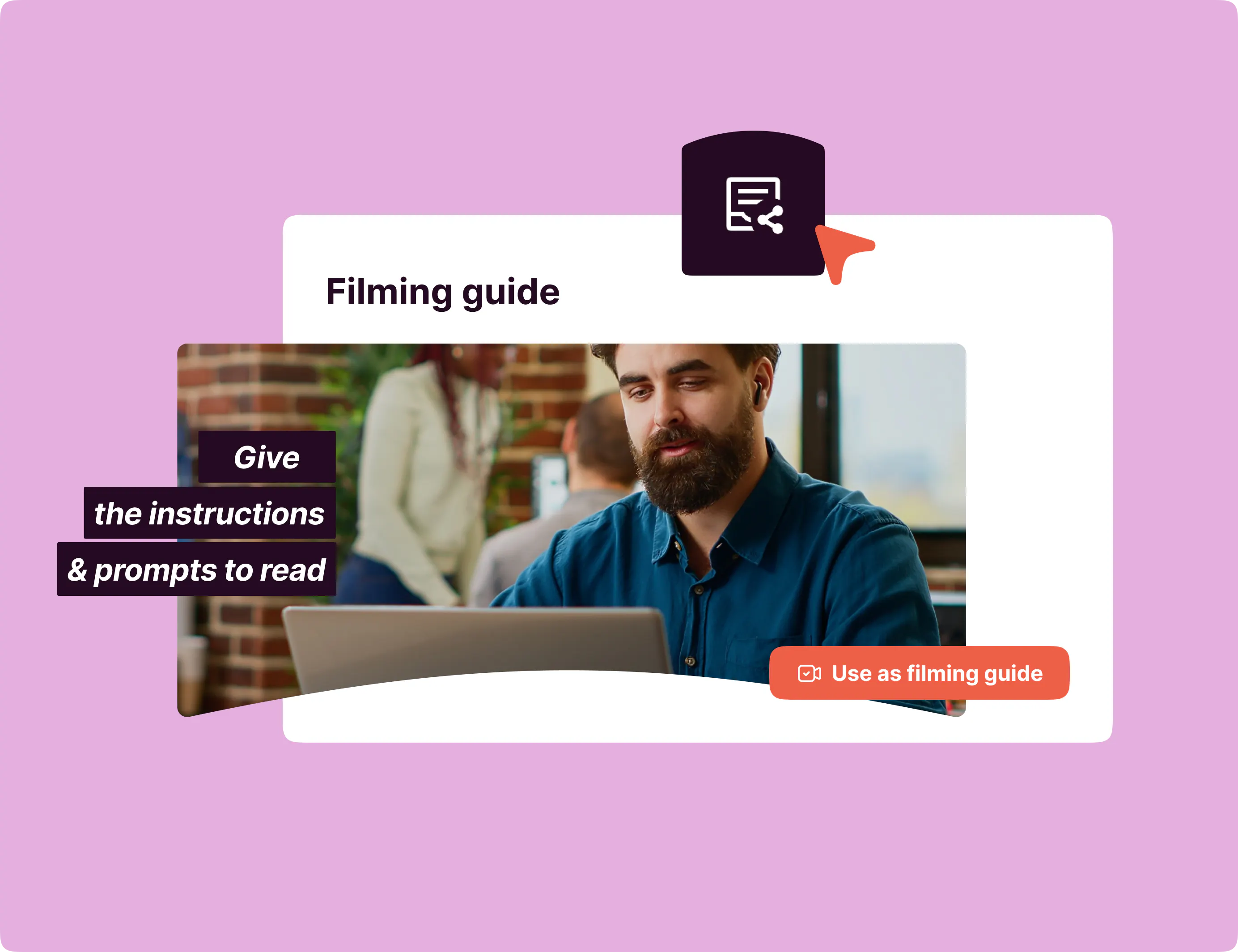
My advice: prepare your source files, set the format (vertical, square, 16:9), write a short script, and get started. Add readable text, subtitles, and subtle music, then export in 1080p. Publish, learn, and start again. Speed creates habit, and habit creates quality. Less hesitation, more visuals that speak for themselves.
That's the Pitchy mindset.
The user-friendly video editing doesn’t have to be a huge task. With the right method and video editing tools, it only takes ten minutes to turn an idea into a clear, fast-paced video that's ready to share on YouTube, Instagram, or TikTok. The key is simplicity: organized files, the right format, clean audio, and a smooth export.
Pitchy supports you throughout this process with a platform that makes video creation as seamless as posting on social media. You save time, maintain quality, and publish more often.
Want to try it for yourself? Request a Pitchy demo and test the 10-minute promise.

Resources
Related resources

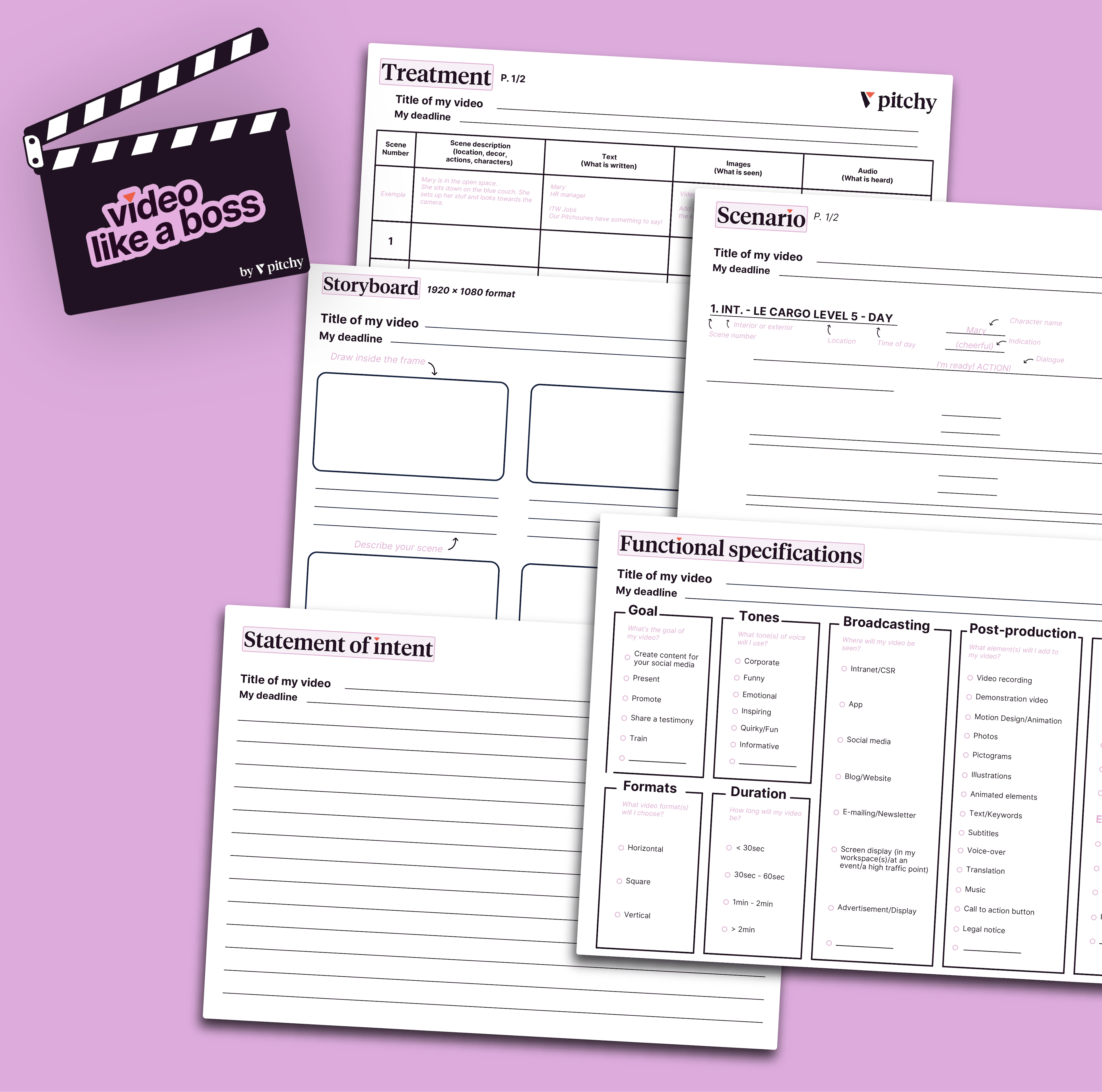
Get our all-in-one kit to kickstart your video projects effortlessly!

Discover the best video editing software for beginners: intuitive, accessible, and perfect for your first projects.

We've listed the major trends in terms of video formats for you, and it's good timing, because Pitchy allows you to cover them all!

We share best practices to help you develop your video strategy and choose the right formats to stay ahead in your communication and digital transformation.